


NetViews 1.0 User Guide Manual
NetViews ver. 1.0 Client Test Manual
- Preparation to download and run NetViews:
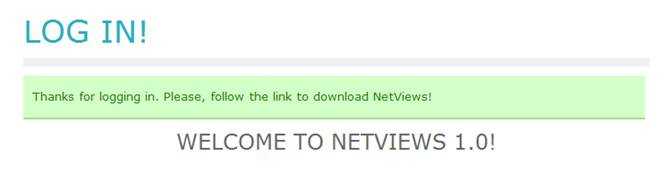
In order to download NetViews 1.0 you must sign up first at our website. You might follow the direct link http://netlab.cs.memphis.edu/index.php. All fields should be filled in. Once you have signed up, we’ll review the information entered and make a decision, whether to allow or deny download. You’ll receive an e-mail with the approval or denial notice. If approved, you’ll have to follow the link to log in and, once logged in; you’ll have to click on the downloading icon.
- Running NetViews:
First, you’ll need to click on the Launch Button. Then Save -> Open -> Run (Allow -> Run). You might need to follow a different way, depending on a browser you are using.
- Gathering Data:
There are multiple ways to gather BGP data. All BGP data is gathered using Colorado State's BGP Monitoring System and processed at the University of Memphis Netlab. This information is then broadcasted over our overlay network. The various mechanisms for retrieving this data are as follows:
- Starting BGP Update Stream
In order to get BGP updates in real time you must be connected to our overlay network. The way to do this is the following:
- First, start a new session: File -> New. A new Subscriptions window will pop up. Go to Subscriptions> Add and enter the prefix you wish to track within the prompt. To track all prefixes subscribe to “/0” (Figure 1). Do this for however many prefixes you wish to subscribe to. You can also subscribe to updates from a specific peer by entering it’s AS number. You can choose whether to subscribe to all peers, or just the ones you’re interested in. Just hit subscribe to all, or pin the ones you want to view. This window will show each peer’s IP ASN, IP address and the size of RIB table. Finally, the Summary window will summarize all the entered information. Once you have subscribed, you will see your subscriptions in the Subscribed Peers and Subscribed Prefixes windows on the main screen.
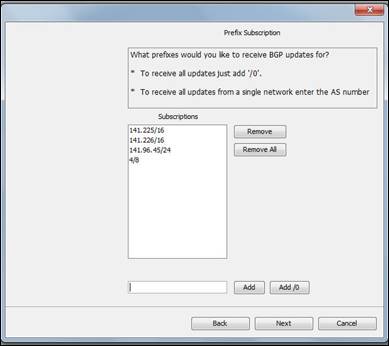
Figure 1. Prefix Subscription Window
- After you have made the proper subscriptions you will be connected to the overlay network. The console window will show you the information on connection. You will then see BGP updates as they are generated by peers in the BGP Updates portion of the main screen.
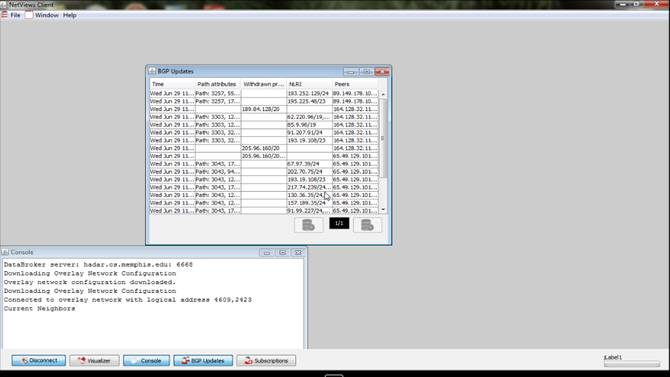
Figure 2. Main Screen Window (BGP Updates Window, Console Window)
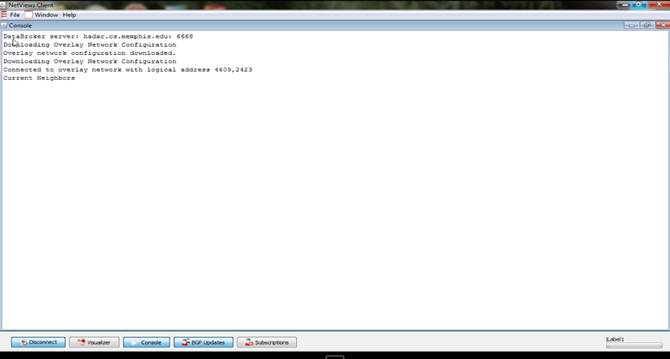
Figure 3. Console Window
- Running the Visualizer:
In order to see a visualization of the current state of the internet, simply go to Window>Visualizer, or click on ‘Visualizer’ button at the bottom of the main screen. This will open a new window. The Visualizer Window contains a Map Frame and additional frames embedded on top of the map to control a visualization process. Among them are: Zoom Frame (to zoom a map in and out), Legend Frame (to show how new routes and old routes are illustrated on a map), Controls Frame (to inform about customizing a window) and Latest Update Information Frame (to inform on new updates received and monitor this information)*. This Last Update Information Window is very helpful, as it allows a user to traverse the map (forwarding and back warding). The Reset and Play buttons stop and restart the live visualization. The Live button will have updates processed immediately, as they are received from the overlay. And, Show Current Topology Button will show live or paused internet topology.
Also, once paused, you can view Registry Info of any AS on the map you are interested in. Simply, just Right Click on AS -> Whois Record -> Registry Info.
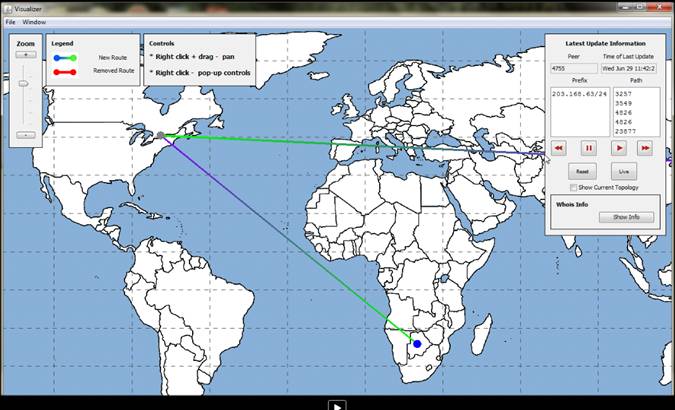
Figure 4. Visualizer Window
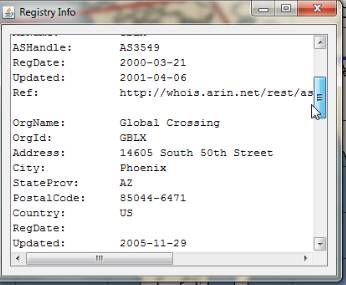
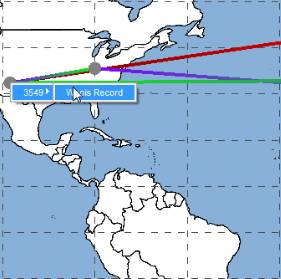
Figure 5.Right click on AS–Whois Record Figure 6.Whois Record Registry Info
*Additional Options:
From the map window itself AS networks can be clicked and moved using the left mouse button. To move the map itself use the right mouse button. To zoom in and out use the mouse wheel or if you do not have a mouse wheel use ALT-left mouse button to zoom.